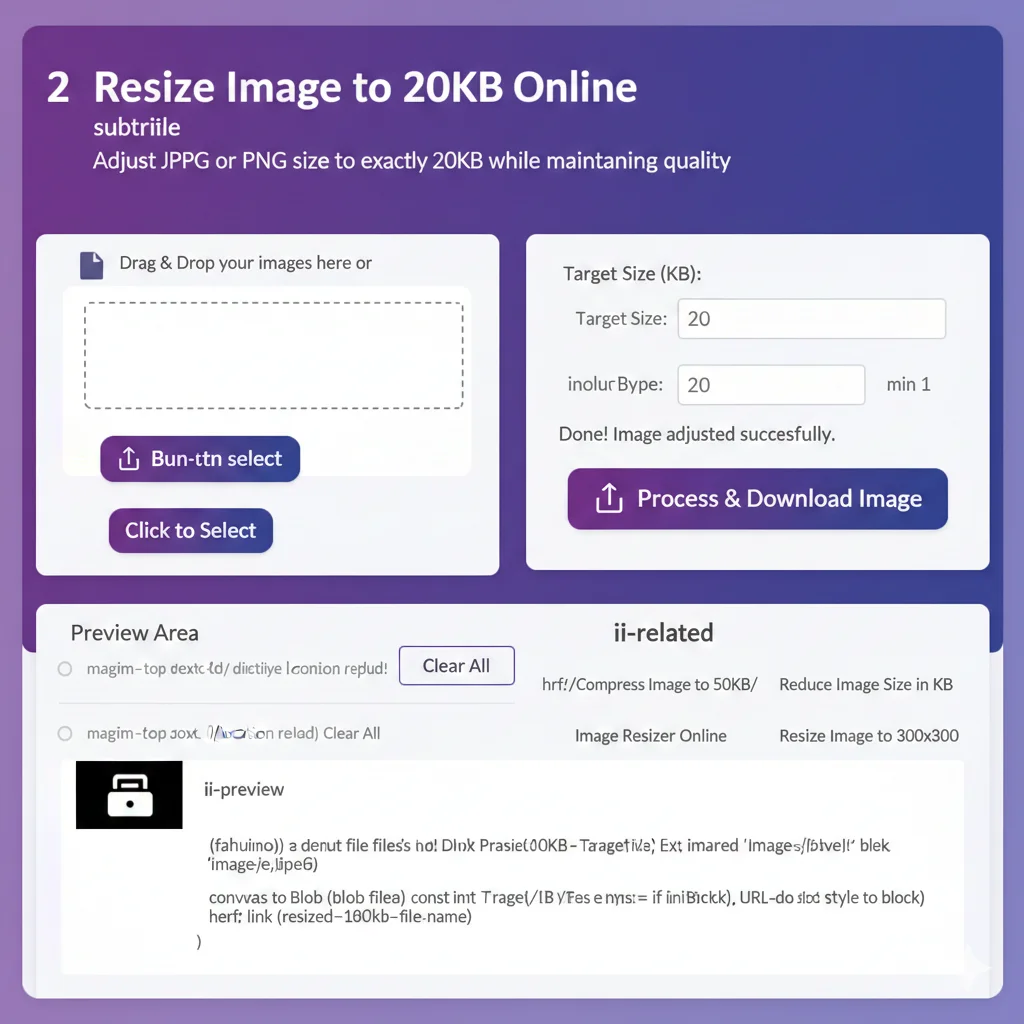
Resize Image to 20KB Online
Adjust JPG or PNG size to exactly 20KB while maintaining quality
📂 Drag & Drop your images here or
Done! Image adjusted successfully.
Resize Image to 20KB Online: Adjust File Size Without Losing Quality
In many online applications—especially for government portals, job applications, and visa forms—you are often restricted by a very specific file size limit. One of the most common requirements is a file that is exactly or under 20KB.
If you have a high-resolution photo, shrinking it down to such a small size can often result in a blurry, unusable mess. Our Image Resizer to 20KB tool uses advanced browser-based logic to help you hit that target perfectly while keeping your image clear and professional.
Why 20KB is the "Magic Number" for Online Forms
Many legacy databases and official portals (like those used for passport photos or entrance exams) limit uploads to 20KB to save server space. This creates a challenge for modern smartphones that take photos starting at 3MB to 5MB.
Our tool bridge this gap by:
Reducing dimensions intelligently.
Adjusting compression levels without destroying pixel clarity.
Adding necessary data padding if your original file is too small to meet a “minimum 20KB” requirement.
Features of Our 20KB Image Tool
Safe & Private: Your photos never touch a server. All processing happens inside your browser, making it 100% secure for sensitive ID photos.
Fast Processing: Get your result in milliseconds.
Purple Branding: A clean, easy-on-the-eyes interface designed for productivity.
Dual Action: It can compress a large image down to 20KB or increase a tiny image up to 20KB.
How to Resize Your Image to 20KB
Using this tool is designed to be a “one-click” experience:
Upload: Drag and drop your JPG or PNG into the purple upload zone.
Set Target: The tool is pre-set to 20KB, but you can adjust this if needed.
Process: Click the “Process & Download” button.
Done: Your perfectly sized image will automatically download to your device.
Pro Tips for the Best Results
Aspect Ratio: Our tool maintains your image’s original proportions, so your face or document won’t look stretched.
File Formats: While we support PNG, JPG is generally better for hitting 20KB targets because it is more efficient at compression.
Clear Backgrounds: For ID photos, try to use a plain background; this allows the compressor to work more efficiently, keeping your face sharper at lower file sizes.
Frequently Asked Questions (FAQs)
1. Will increasing the KB size make my image look sharper?
No. Increasing the file size (KB) by adding data padding does not add new visual detail or resolution to your photo. It simply makes the file “heavier” to meet specific technical requirements of upload portals. To keep your image looking its best, always start with the highest quality original possible.
2. Is it safe to upload my personal ID or passport photos?
Yes, 100%. Our tool is built with a “Privacy-First” approach. All image processing happens locally within your web browser. Your images are never uploaded to our servers, meaning no one—including us—can ever see or store your private documents.
3. Can I use this tool on my mobile phone?
Absolutely. The tool is fully responsive and works perfectly on Android, iPhone, and tablets. Since it uses your browser’s processing power, you can resize and download your images directly to your mobile gallery without installing any apps.
4. Which format is better for hitting exactly 20KB: JPG or PNG?
While our tool supports both, JPG (JPEG) is generally recommended. JPG files are much more efficient at compression, making it easier to hit specific targets like 20KB or 50KB while maintaining better visual clarity compared to the heavier PNG format.
5. What should I do if my image is still rejected after resizing?
If a portal rejects your image, check two things:
Dimensions: Some portals require specific pixel widths (e.g., 300×300).
File Extension: Ensure the portal accepts the format you downloaded (e.g.,
.jpg). If you need a different size, you can simply adjust the “Target Size” box in our tool and re-process the image.